
View Server Status and Options
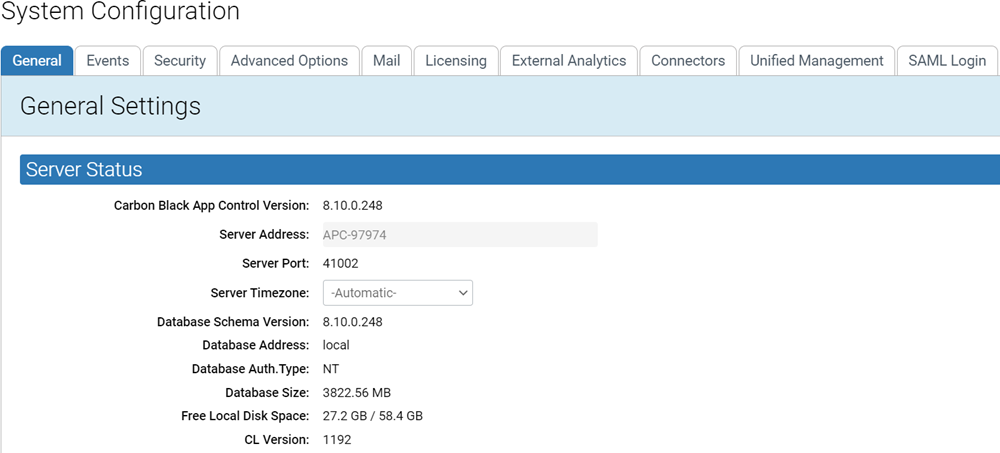
The top panel on the General tab of the System Configuration page is Server Status, which displays Carbon Black App Control Server parameters and allows editing of some of them.
Caution: Parameters on the Server
Status panel tell you about the size of the Carbon Black App
Control database and
the amount of free space on the computer that is running Carbon Black App
Control Server. These
notifications do not, however, report on whether an external SQL database is running
out of space. Regardless of which database option you select, monitor your
Carbon Black App
Control
database regularly to be sure it does not overflow and prevent the Carbon Black App
Control Server from
operating. See the Carbon Black App Control
Server Installation Guide for more information on database configuration.
See Creating
Alerts for information on database-related alerts.
- On the console menu, click the Settings (gear) icon and click System Configuration.
-
Click the General tab. The General configuration options
appear, with the Server Status panel showing at the
top.
- To change the time zone, click the Edit button, make the changes, click Update, and then click Yes in the confirmation dialog box.