
Restoring the Carbon Black App Control Server
You can restore the Carbon Black App Control Server to its most recent state. Carbon Black App Control database and settings restoration is a manual procedure that requires reinstalling the Carbon Black App Control Server.
As a precaution, the restoration procedure disables automatic backups to ensure that your only backup copy is not overwritten before you can copy it to a safe location.
The Carbon Black App Control Agent runs independently of the Carbon Black App Control Server. During the time that you reinstall Carbon Black App Control Server and restore the backup configuration, computers remain protected according to the configuration settings received from the Carbon Black App Control Server during their last polling instance.
Restore the Carbon Black App Control Server
To restore the Carbon Black App Control Server to its most recent configuration, perform the following procedure.
- If your Windows installation is corrupted, reinstall the operating system on the Carbon Black App Control Server hardware. See the Carbon Black App Control Server Installation Guide for installation guidelines.
-
Reinstall the Carbon Black App
Control
Server:
- Insert the Carbon Black App Control CD (or an executable image of it) in a drive connected to the designated server.
- To run the installer, follow the installation prompts. See the Carbon Black App Control Server Installation Guide for information about installation options, including changing the server IP address, installing by using terminal services, or using a DNS name.
- On the Install Type Option screen, select the Restore from backup option.
- Navigate to the backup directory.
- Follow the remaining standard installation prompts, and after completing the installation, exit the procedure.
Resume Automatic Backups
To resume automatic backups, perform the following procedure.
During the restoration procedure, continuous backups are automatically deactivated.
- Copy all files in the backup folder to a new location so they are not overwritten (or specify a new backup folder and leave existing backup files in place).
- Verify that the currently specified backup directory is empty so that the fresh backup completes without potential corruption by old files.
- On the console menu, click the Settings (gear) icon and click System Configuration. click the Advanced Options tab. The Database Backup panel is at the top of the Advanced Options page:
-
Click the Advanced Options tab. The Database
Backup panel displays at the top of the Advanced Options page:
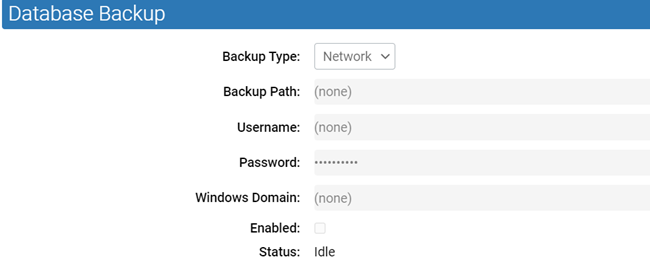
- Click Edit and select the Enabled check box.
- Click the Update button at the bottom of the page and then click Yes in the confirmation dialog box.