
Configure Active Directory Integration
The Carbon Black App Control Server can take advantage of your Active Directory (AD) environment to set access privileges for users of the Carbon Black App Control Console. You can assign security policies to computers and provide user and computer metadata. Also, you can designate certain groups or users to be able to install software on computers that are managed by Carbon Black App Control, and have the software automatically approved.
- On the console menu, click the Settings (gear) icon and click System Configuration.
-
Click the
General tab, and scroll to the Active
Directory/LDAP integration section.
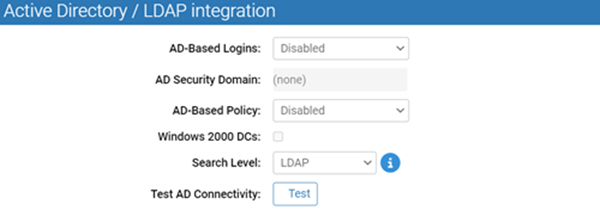
- To configure AD or LDAP integration, click the Edit button at the bottom of the page.
- Enter the AD Security Domain for the server, and select the Windows 2000 DCs check box if you are using a Windows 2000 domain controller.
-
In the Active Directory/LDAP integration panel, click
the Test AD Connectivity button to determine whether
there is an AD server accessible to Carbon Black App
Control.
Note: This test does not confirm that the domain you provided is legitimate.
- Click the Update button, and then click Yes in the confirmation dialog box.