
Manage Client Registration Codes
Client registration codes are used when you register agents with the server during installation. They prevent other programs from impersonating Carbon Black App Control agents.
You can generate client registration codes, and enable and disable them.
If they are enabled, you must provide the client registration code when you install a new agent that supports this feature or after installation by using the command line interface. Existing agents that have already connected to the server will remain connected, and will not need the registration code.
This feature may not be visible in the console until a version of the agent that supports registration codes is installed.
- On the console menu, click the Settings (gear) icon, and click System Configuration.
- Click the Security tab, and scroll to the Client Registration Code section.
-
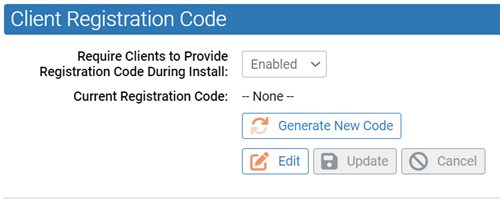
To enable the usage of client
registration codes:
-
Click
Update, and click Yes
in the Confirmation page to confirm the server
setting change.
-
Click
Update, and click Yes
in the Confirmation page to confirm the server
setting change.
-
To generate a new code, click
Generate New Code and, in the
Confirmation page, click Yes
to confirm the server setting change.
The current registration code is displayed with a timestamp of the generated date.
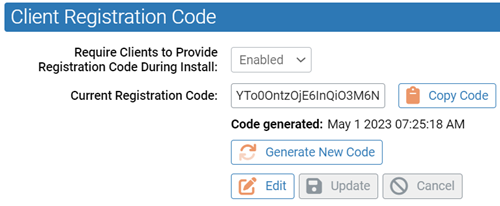
- To copy the current registration code, click Copy Code.
-
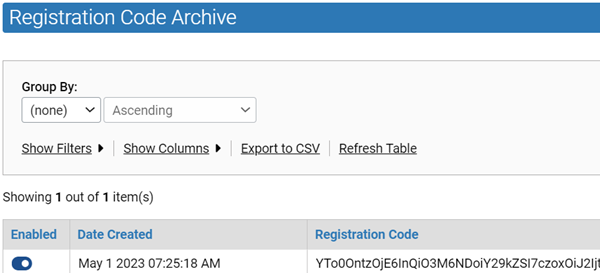
To enable or disable a
registration code, in the Registration Code Archive
table, use the toggle settings in the Enabled column for
the relevant code.
Important: You cannot delete the last client registration code. There must be at least one active registration code.
Use the client registration code as follows, depending on your installation setup:
- To install an agent using the registration code, use the following command
line:
msiexec.exe /i policyname.msi B9_REGISTRATION_CODE=registrationcodegoeshere - To connect an agent with the server
after running the installer without the registration code, use the following
command
line:
dascli.exe register code registrationcodegoeshere