
Configure and Enable a Rapid Config
To take advantage of a Rapid Config, you must configure it and then enable it.
The actions required for configuration vary depending upon the config:
- In some cases, all configuration settings are built-in, and the only changes a user can make are to enable or deactivate the Rapid Config and change the policies to which it applies.
- If a Rapid Config has editable fields but all of these are either optional fields or already have values, you can enable the config immediately. If a Rapid Config has a setting that could block or report and action, the default is usually “Report”.
- If a Rapid Config has required fields that do not have defaults or values you previously entered, values must be entered into those fields before the config can be enabled.
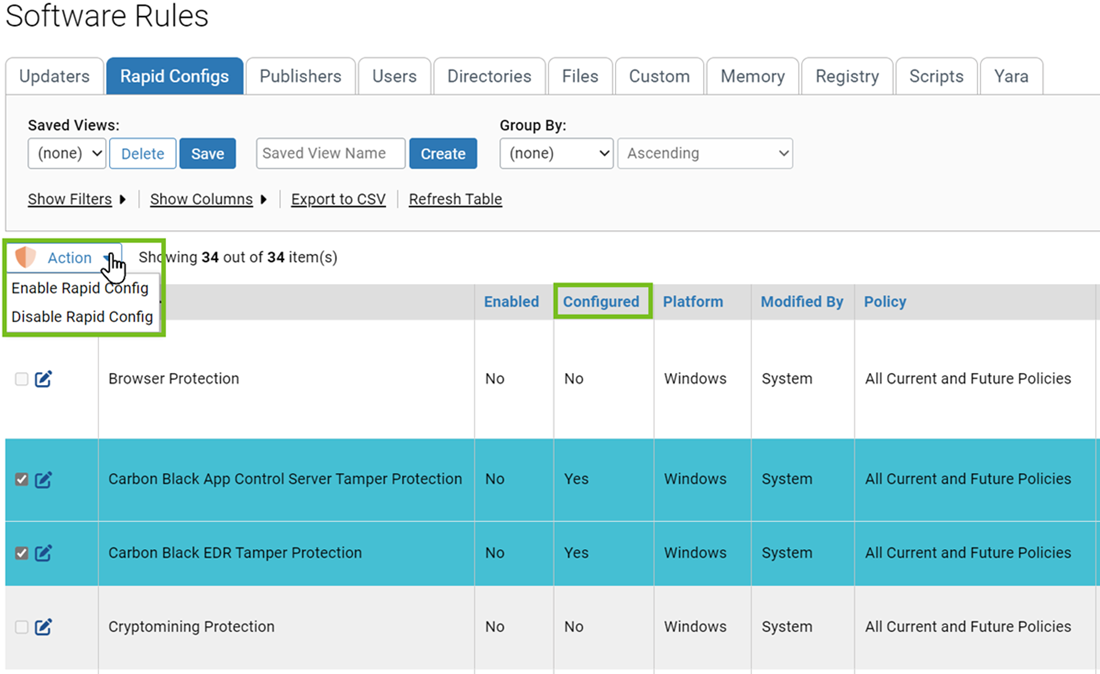
The Rapid Configs table includes a column showing the configuration status of each config. Any config whose Configuration column shows Yes can be enabled directly from the table page. Rapid Configs whose Configuration column shows No cannot be selected on that page (their check boxes are grayed out), and must be configured on the Rapid Config Settings page before being enabled.
- On the console menu, navigate to the page.
- To view the available configurations, click the Rapid Configs tab.
-
Check the box next to any configuration you want to enable.
Only the check boxes for configured Rapid Configs can be selected.
-
From the Action drop-down menu, select Enable
Rapid Config.
The config is enabled for all policies, or if you are re-enabling a previously configured Rapid Config, it uses the policy settings choices you made before.
-
To enable a Rapid Config that is already configured but you want to select the
policies it applies to, follow the steps.
-
Click the View
Details button next to the configuration you want to edit.
The Edit Rapid Config window displays.
The details of each Rapid Config vary.
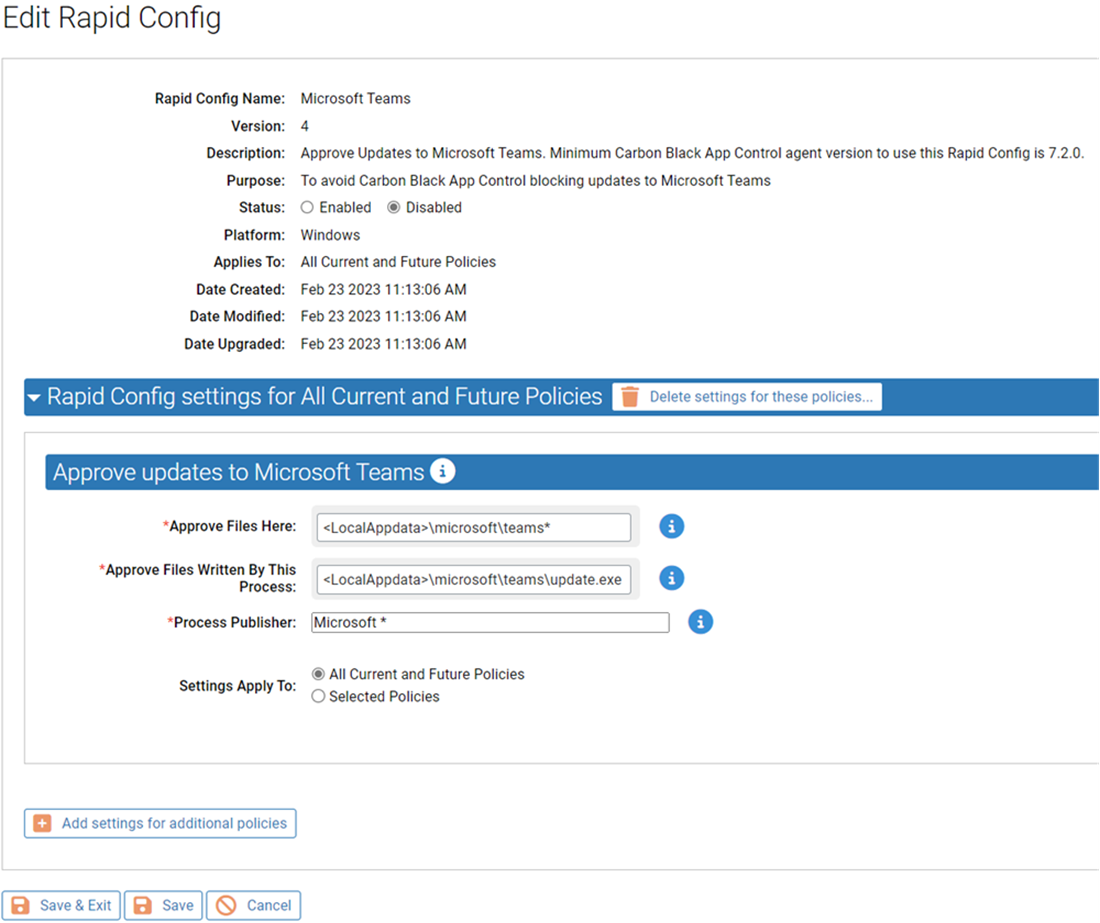 Note: You must fill out all mandatory fields (with a red asterisk) before the config can be enabled. For more information, see Configure and Enable User-Defined Rapid Config.
-
Click the View
Details button next to the configuration you want to edit.