
Logging Events to a Supplemental SQL Server
External logging gives you the option of creating custom report implementations directly through SQL. Using an external server can also meet forensic or compliance requirements for long-term event storage while maintaining events for a shorter period in the Carbon Black App Control Server database.
You can also implement external event logging for performance reasons.
When you activate external logging, the following occurs:
- External logging does not eliminate local logging in the primary SQL Server database. Event logging continues, and saves events for the time period or the total number of events that you specify.
- For better system performance, event data is copied from the primary SQL Server database to the external event SQL Server database approximately every 30 seconds.
- Events that happened prior to your activation of external logging are not copied to the external log. If you want external logging to be comprehensive, we recommend that you set it up at the same time as you are setting up the Carbon Black App Control Server.
- If the external server becomes inaccessible, an error is logged, but there is no change in Carbon Black App Control Server behavior. When the external server is available again, events that were missed are copied.
External Event Logging Options describes the parameters on the External Event Logging panel of the Events tab. Contact Carbon Black Support for additional details.
Enable External Event Logging to an Additional SQL Server
To enable external event logging to an additional SQL server, perform the following procedure.
- Install SQL Server on a machine that has sufficient capacity for Carbon Black App Control event logging. Be sure to note the information for the DSN (Data Source Name) string – this is required for use in the Carbon Black App Control Console.
-
Run the external-events script
external_events.sqlto configure the SQL database to properly store events. This script is located in the \sql folder under the server folder in the Carbon Black App Control installation directory (by default, Bit9\Parity Server). The script must be run on the newly installed SQL Server before you can use external events logging. - On the Carbon Black App Control Console menu, click the Settings (gear) icon and click System Configuration.
- Click the Events tab.
- Click the Edit button and select the Use External Database check box. This selection activates the Test button and the data fields on the panel.
-
In the
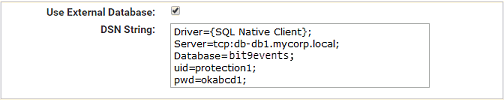
DSN Stringfield, enter the DSN for this database.-
Manual authentication configuration includes the following data
elements. Each element is on its own line and separated by semicolons
(the illustration shows an example):
- Driver={SQL Native Client};
- Server=tcp: yourfullyqualifiedservername\ instancename;
- Database=bit9events;
- Uid=usernameforSQLadmin;
- Pwd=password ;
-
Manual authentication configuration includes the following data
elements. Each element is on its own line and separated by semicolons
(the illustration shows an example):
- To make sure your DSN works, click the Test button. If your DSN was configured appropriately, a “Testing: Success” message displays below the DSN String box. Otherwise, you will see an error message.
-
After your DSN test succeeds, click the Update button
and click Yes in the confirmation dialog box to activate
external logging.
Caution: If you upgrade the server to a new version, external databases are not automatically upgraded. You must run the external-events script
external_events.sqlto configure the SQL database so that it can properly store events. This script is located in the \sql folder under the server folder in the Carbon Black App Control installation directory.
Disable External Event Logging
To disable external event logging to a SQL server, perform the following procedure.
- On the console menu, click the Settings (gear) icon and click System Configuration.
- Click the Events tab and then click the Edit button to activate the data fields on the panel.
- Deselect the Use External Database check box.
- Click Update and click Yes in the confirmation dialog box to disable external event logging.