
Adding Drift Results to a Snapshot
When you view Baseline Drift Report Results, you might see files in the report that you do not want to track for drift. If the drift report uses one or more snapshots as a baseline, you can add files from the drift report to one of the baseline snapshots.
You also can create a new snapshot and then add the new snapshot to the baseline.
This type of remediation essentially means you want to ignore certain drift results in the future. Nothing is sent to the agents to remove this drift (that is, change their file inventory), and existing report results remain the same. However, files you add to a snapshot that is part of the baseline are not included in future drift report results.
Add Files to a Snapshot from a Baseline Drift Report
To add files to a snapshot from a baseline drift report, perform the following procedure.
-
In the report, for example, the
Drift of all computers report, select the check boxes
for any files you want to add to the snapshot, and click the Show
Snapshot link.
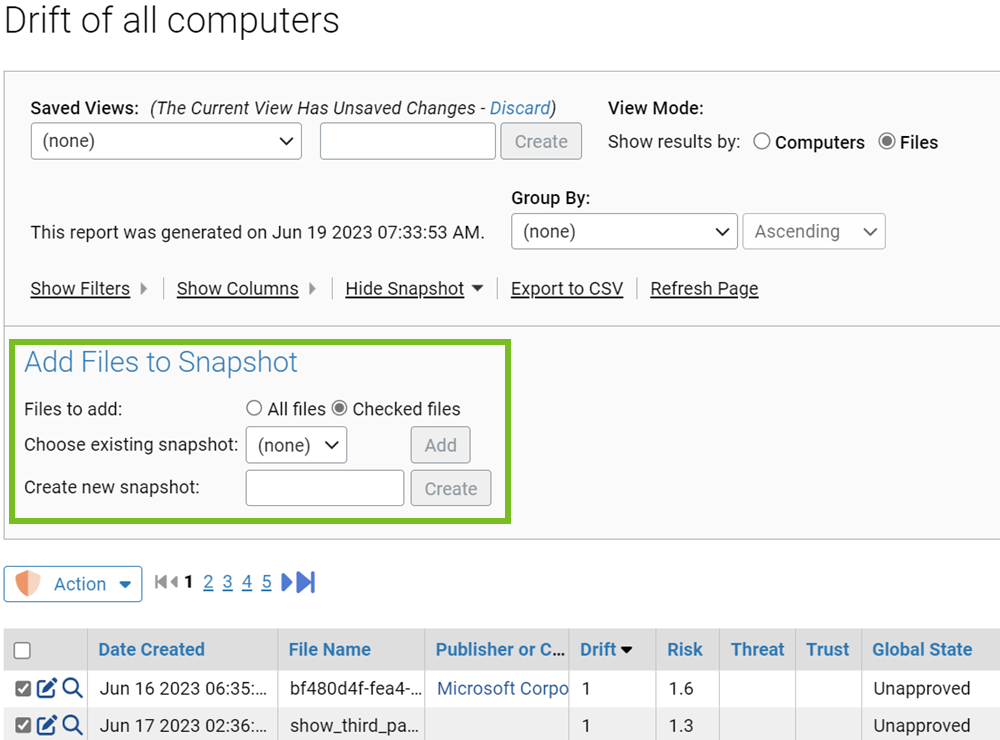
- In the Add Files to Snapshot panel, select the radio button for All files or Checked files in the Files to add line.
-
Specify the snapshot to which to add the files:
- To add the files to an existing snapshot, select the snapshot from the Choose existing snapshot menu and click Add. This menu includes all available snapshots, not just those used as a baseline for the current report.
- To add the files to a new snapshot, type a name in the Create new snapshot box and then click the Create button.
- If the report is more than one page long and you are adding selected files, repeat the procedure for each page that contains files to add.