Copy Rules to Other Servers
In addition to sending a rule to multiple servers when you create it, you can copy one or more existing rules from any unified server to any other unified servers.
You must be logged in to the management server.
This process uses a wizard similar to the one used to save a new rule to multiple servers.
If you copy a rule to a server that already has a local version of that same rule, the unified version replaces the local version.
There is a Copy this rule command on the right menu on the Edit Rules page for Custom, Registry, and Memory Rules. This command makes copies of the rule on the same server — it does not copy rules to other servers for Unified Management.
-
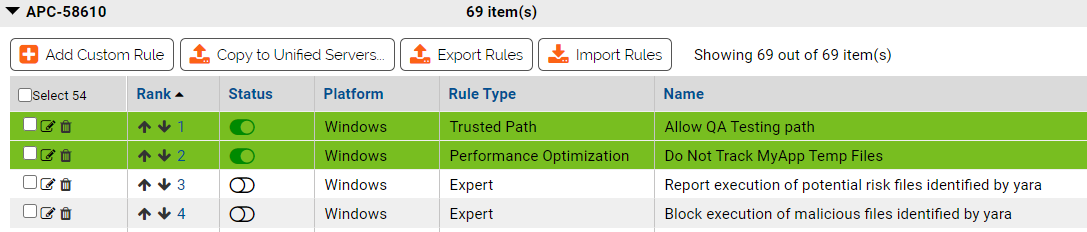
In the Rules Table page, select
the check boxes next to the rule(s) that you want to copy.

-
Click the Copy to Unified Servers button. This opens the
Copy Rules to Unified Servers wizard.
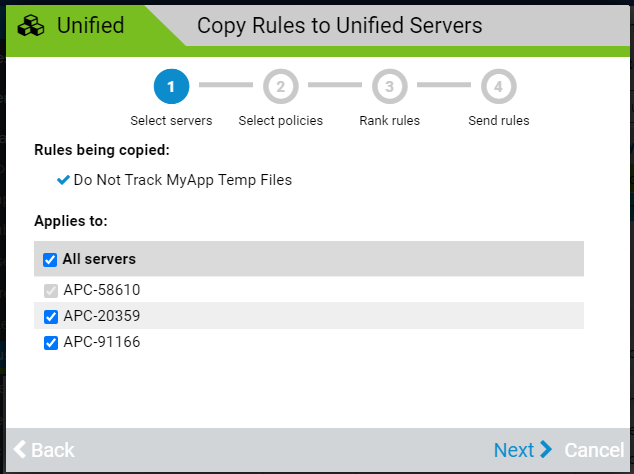
- On the first page, you specify which servers receive the rules. All servers is the default value, but you can specify that only some servers receive the rules by using the check boxes. When you have specified which servers the rule applies to, click Next in the bottom right corner of the screen.
-
The next screen allows you to specify two fields:
- Override Permissions – You can allow or block administrators who do not have permission to use or configure Unified Management from modifying the copied rules on their server. The choices include full override (editing rules and changing their rank), changing rank only, or no override.
- Note: This permission has no effect on users that have Use Unified Management or Configure Unified Management permissions.
-
Policies – You can specify that the rules apply to all policies on all servers, or you can select individual policies to be affected by the rules.
Note: If you recently created, edited, or deleted policies on a remote system, the policy list from a remote server might not be updated on the management server immediately. With normal connectivity, policy lists from remote systems are be up to date on the management server within one minute; however, slower networks might increase this gap.
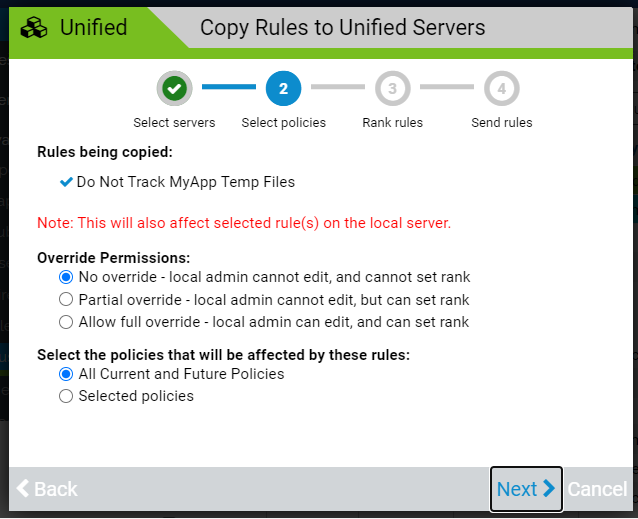
When you have made your override and policy choices, click Next.
-
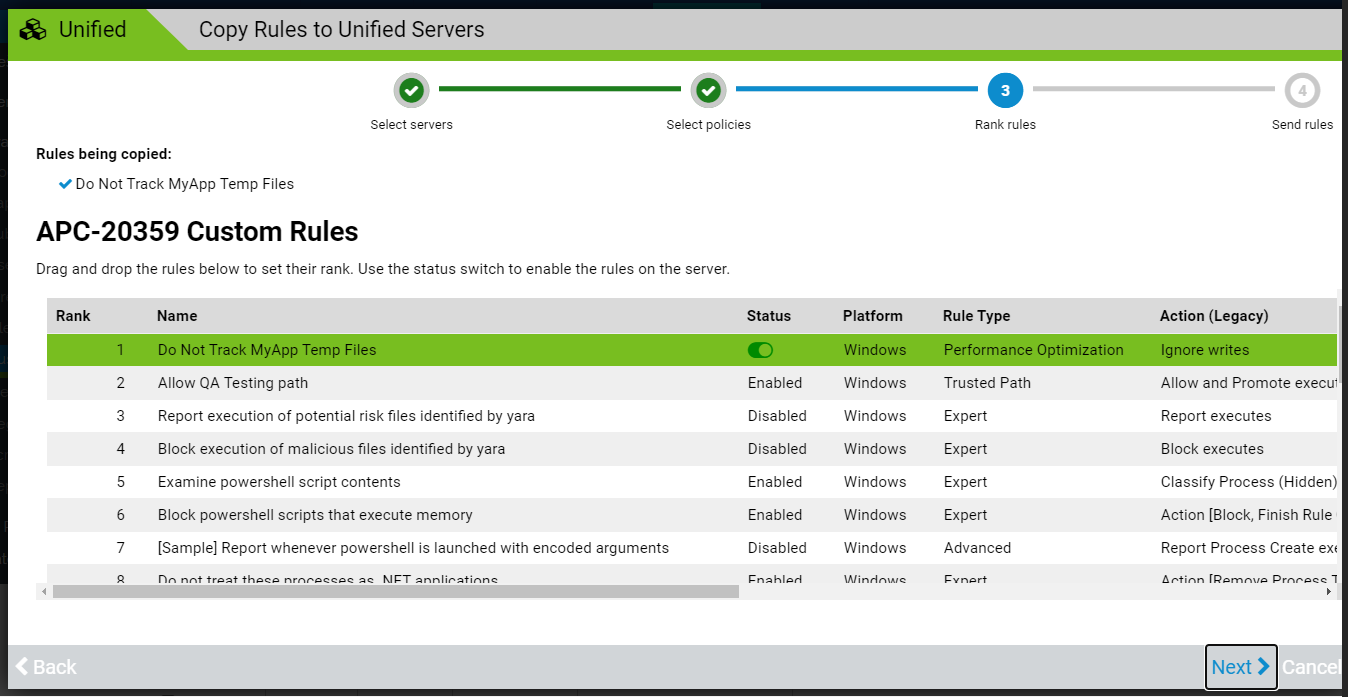
You can customize the rank of the rules on each client server. You also can
change the status of each rule from enabled to deactivated, or vice versa. By
default, the rules you are copying are ranked at the top of the table on the
client server. You can drag the new rules to a different position in the list.
-
Review, and if appropriate, change the rank of the new rules on each
server as it appears in the wizards. Also, if you want to change the
status of a rule between enabled and deactivated, use the
Statusfield toggle button. When you have made any necessary changes for this server, click Next. to move to the next server. - When the rule rank screen for the last server appears, the Next button changes to Send Rules. If you are satisfied with your configuration, click this button.
-
Review, and if appropriate, change the rank of the new rules on each
server as it appears in the wizards. Also, if you want to change the
status of a rule between enabled and deactivated, use the
-
After you click Send Rules, a progress screen shows the
status of the rule copy operations. Unless errors are encountered, iteventuallys
show that all rules were copied to all selected servers. When the progress bar
shows Complete, click Finish to
exit the wizard and return to either the Add/Edit Rule page (if you clicked
Save) or the table page for this rule type (if you
clicked Save and Exit).
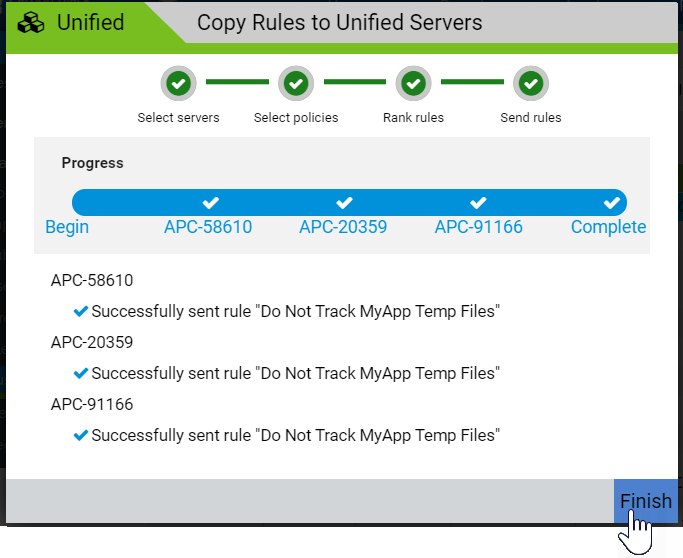
If errors occur during the rule copy process, they display with red exclamation marks instead of blue checkmarks in the final page of the wizard. Depending upon the issue found, correcting it might be possible by repeating this procedure. Some issues, such as connectivity failures, might require remediation on one or more of the servers.
After you copy a rule to other servers, its row appears highlighted in green on the rules pages for all servers under unified management, including the management server itself.