
Create Memory Rules
You create a memory rule within the Memory tab by providing general information, setting up definitions for the rule, and applying it to all or specific policies.
-
Get familiar with the custom rule fields that you are about to edit. For details, see Table: Memory Rule Fields .
- Get familiar with changing the rank of a rule. For more details, see Change the Rank of a Memory Rule
|
General Description |
Field on Add/Edit Memory Rule Page |
|---|---|
|
If this/these source process(es)... |
Source Process |
|
...and/or this/these user(s)... |
User or Group |
|
... attempt the following memory access type... |
Permissions |
|
... to process(es) at this/these location(s)... |
Target Process |
|
... on computers in this/these policy(ies)... |
Rule applies to/Policies: |
|
... on computers reporting to this/these App Control server(s)... |
Rule applies to/Servers (if Unified Management is enabled) |
|
... then this action should be taken. |
Action |
* Additional actions and other options are available in Expert Mode. For more details, see Expert Rules.
Each of these fields can have multiple matching items, or the rule can specify all items in that class (e.g., the rule applies to all users, or all policies, or all source processes).
- On the console menu, navigate to the page.
-
Click Memory on the left menu or the tab on the
page.
The memory rules table appears, showing several built-in rules and any other memory rules that exist on your server.
-
Click the Add Memory Rule button.
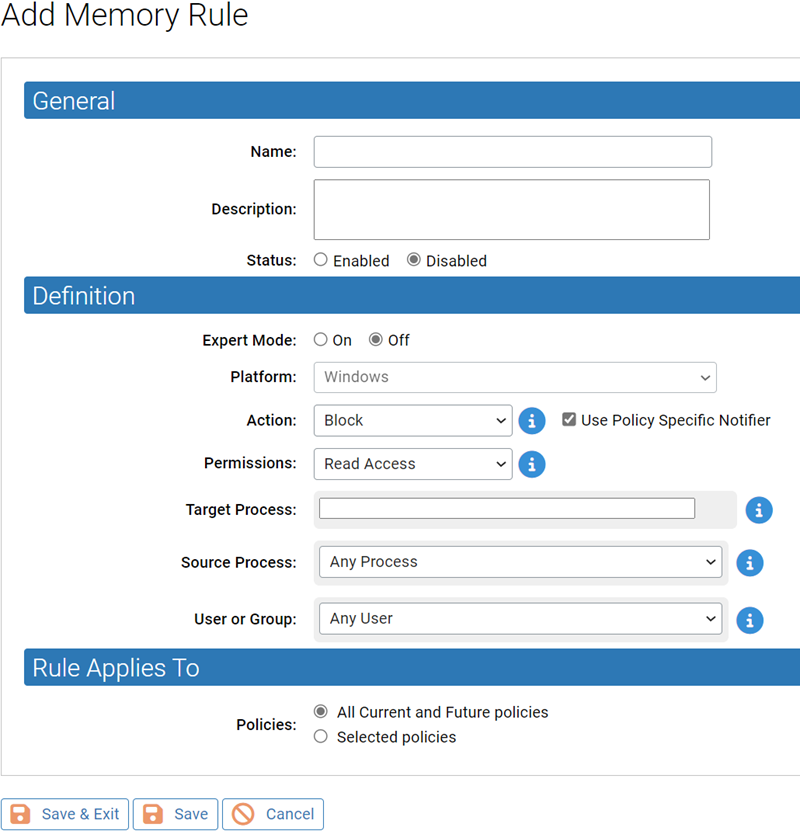
The Add Memory Rule page appears.
-
In the Name text box, enter the name you want to appear
on the list of rules.
You can also provide a longer, optional description.
-
Enter the remaining information for this rule and click the
Save button if you need to remain on the page, or
Save & Exit to go to the memory rules table.
.
By default, a new memory rule is Disabled and ranked #1, listed at the top of the memory rules table
-
Before enabling a rule, you must change its rank, unless you want it to take
precedence over all other rules.
You can change rank using the arrows in the Rank column or drag-and-drop (if the table is sorted by rank), or you can click on the rank number and enter a new rank in the dialog box.
- When you are satisfied with the rank and want to enable the rule, click the toggle switch in the Status column of the memory rules table.