
Create or Add to a Snapshot From all Files on a Computer
To create a snapshot (or add to one) from all files on a computer, perform the following procedure.
Note: A snapshot of the files
on a computer is static – it is the list of files that were on the computer when the
snapshot was taken. You also can use a computer itself as a baseline for comparison,
in which case the files on the computer when you run the report are the baseline.
- On the console menu, click Assets > Computers.
- In the Computers table, click the name of the computer whose files you want to use as a snapshot. The Computer Details page opens for that computer.
-
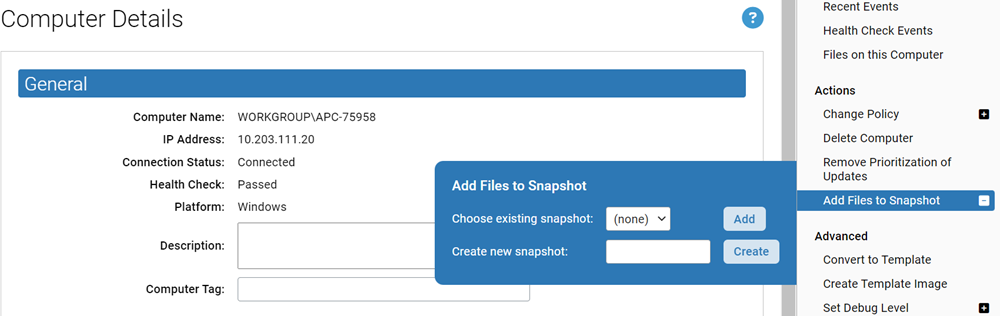
In the Actions menu on the right, click Add
Files to Snapshot. The Add Files to Snapshot dialog box
opens:
-
To create a new snapshot, in the dialog, type in the name for the snapshot in
the Create new snapshot text box and click
Create.
- or -
To add all of the files on the computer to an existing snapshot, choose an existing snapshot from the Choose existing snapshot menu and click Add.
- To view the contents of your snapshot, click Reports > Baseline Drift on the console menu and then click the Snapshot tab. Your new or modified snapshot is displayed in the Snapshots table.