
View Templates in the Computers Table
On the Computers page, you can view a table of computers and information about them, including their policies, Enforcement Levels, and whether they are currently connected to the server.
 . You also can add a Template column to the Computers table using the Show
Columns button. This column will show Yes for templates and No for computers that are
not templates.
. You also can add a Template column to the Computers table using the Show
Columns button. This column will show Yes for templates and No for computers that are
not templates.If you want to see only template computers, use the Template Computers Saved View.
- In the console menu, choose Assets > Computers. The Computers page appears.
-
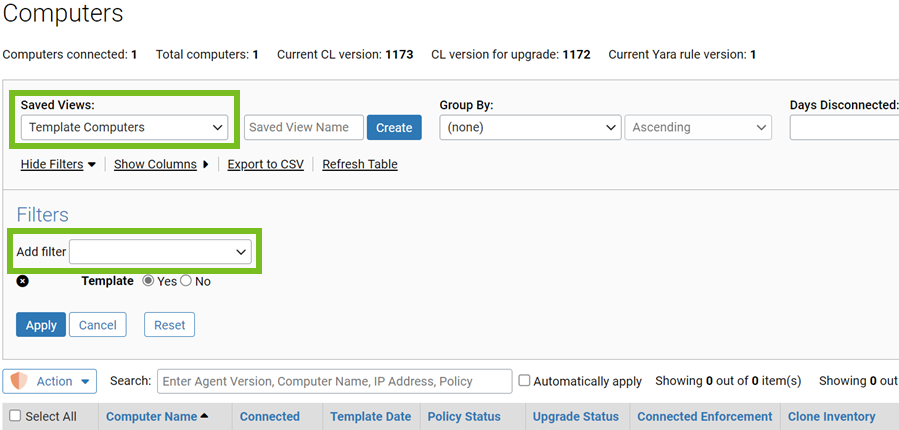
Choose Template Computers on the Saved Views menu to see
computers that are templates for cloned computers.
-
The Saved View uses the filter checkbox Template/Yes. Instead of (or in
addition to) the Saved View, you can click on Show Filter
to further customize the view you have of the Computers table.
The default Template Computers view includes a Clone Inventory column that shows whether the file inventory of clones from this template includes all files on the clone computers or just files that were added or modified after creation of the clone. Note that the file inventory might also be affected by exclusion of tracking for Microsoft-signed support files. See Excluding Tracking of Microsoft Support Files for details.
View and Edit Template Details
There are several ways to locate a template computer and display its details. You can use the Find Computer portlet on the Home Page to locate the template computer and then drill down to its details.
- In the console menu, choose Assets > Computers. The Computers Page appears.
- In the Computers table, locate the template computer for which you want complete details (for example, searching by name, using the Template Computers Saved View, or using the Computer filters panel).
-
In the table, click either the name of the template computer or the View
Details button next to its name. The Template Details page appears.
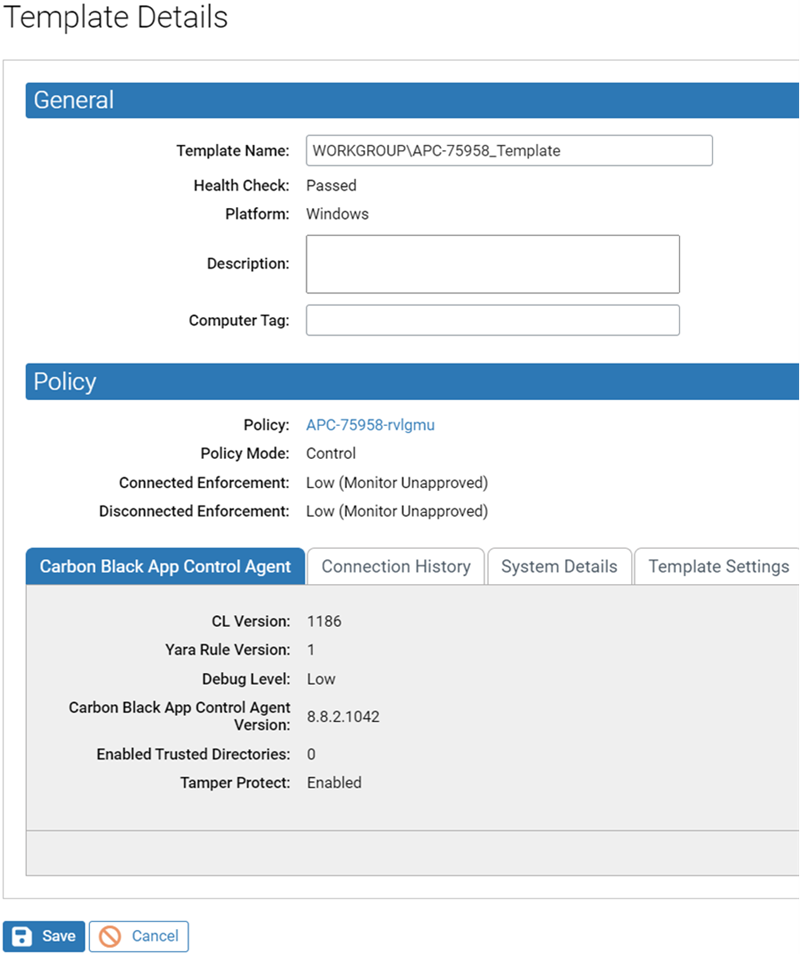
Much of the information is the same as for the Computer Details page ( Computer Details (Details page and Computers table), but there are important differences, as shown in the table that follows.
Table 1. Differences between Template Details and Computer Details Field/Menu/Tab Description in Template Details Page Template Name Replaces Computer Name on the details page. By default this is the name of the computer from which the template was made. Must be unique. IP Address Not present on the Template Details page (has no meaning for a computer that is required to be offline). Connection Status Not present on the Template Details page (has no meaning for a computer that is required to be offline). Health Check On the Template Details page, this is the last Health Check done before the computer became a template. Policy Override tab Not present on the Template Details page. Template Settings tab Details about the template. It includes the following:- Date Created
- When the template was created in the App Control Agent.
- Original Computer Name
- The name of the computer when it was converted to a template.
- Original IP Address
- The IP address of the computer when it was converted to template.
- Clone Count
- The current number of clones from this template.
- Clone Inventory
- Whether the file inventory for each clone should include all files, including the files cloned from the template computer, or only new and modified files. See Configuring Clone Inventory.
Clone Cleanup – When clones for this template should be deleted when offline. See Deleting Clones.
The following sections only display for templates created using Create Template Image:Related Views menu Includes:- Show All Cloned Computers
- shows all clones for this template that have been connected to the App Control Server and not yet deleted.
- Health Check Events
- shows the table of Health Check events for this computer before it became a template.
- Files on this Computer
- takes you to a Find Files page with a table of all tracked file instances on the template computer.
Actions menu The single item on this menu changes depending upon conditions:- Delete Offline Clones
- Appears if the template has clones listed in the console. Deletes all clones of this template that are currently offline.
- Convert to Computer
- Appears if the template has no clones managed by the App Control Server. In this case, you can convert the template computer back to a regular computer and reconnect it to the server, if needed. This is primarily intended to allow you to undo an unintended template conversion.
The menu does not appear if neither condition applies.
Advanced menu Not present on the Template Details page.