
Creating or Editing a Custom Script Rule
Create custom script rules to identify files to be tracked and managed as scripts by Carbon Black App Control. You can a edit script rule to further specify your requirements, or to enable or disable the script.
For information about script rule parameters, see Script Rule Parameters.
Create a Custom Script Rule
This procedure describes how to create a custom script rule.
For a description of the Script rule parameters, see Script Rule Parameters.
-
On the console menu, navigate to
the page.
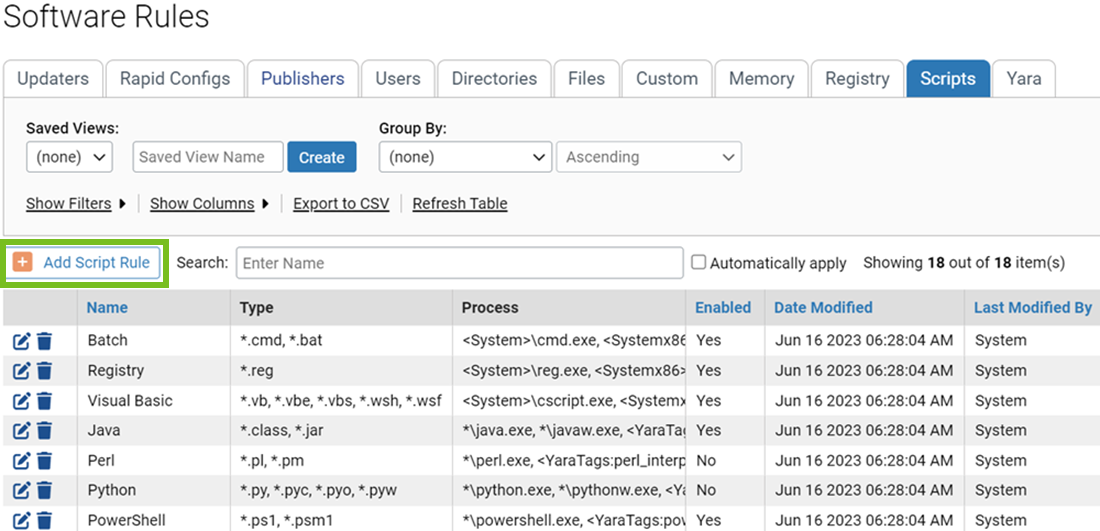
The Software Rules page appears.
-
Click the
Scripts tab, and click Add Script
Rule.
The Add Script Rule page appears.
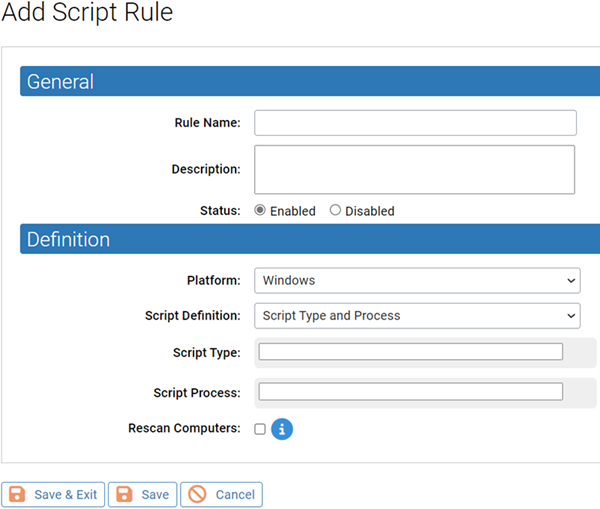
- In the Rule Name field, enter the name you want to appear on the list of rules.
- Optional. Provide a description.
-
To enable the rule later, click
Disabled in the Status field.
By default, a new script rule is Enabled when you configure it and click Save.
-
Select a Platform: Windows, Mac
or Linux.
All script rules are platform-specific.
-
Select a Script
Definition, which determines how the script processor is
identified.
Note: PLATFORM NOTE: For Mac or Linux scripts, only Script Type and Process is allowed in this field.
-
In the Script
Type, enter the file name definition for this script type.
This pattern is usually an asterisk followed by a dot and the file extension. To add more script types after entering the first pattern, click the down arrow to the right of the field. Use the Add and Remove buttons to add or remove patterns, as needed.
- In the Script Process field, add one or more script processes for the Script Type and Process rules (Windows only) by using the Add button.
- If you want to make sure all existing scripts matching this definition are added to the list of files tracked and controlled by Carbon Black App Control, check the Rescan Computers box.
- To save the rule, click Save and Exit.
The rule now appears on the Script rules table.
Edit a Script Rule
The procedure below describes how to edit a Script rule.
- To get familiar with the Script rule parameters, see Script Rule Parameters.
- For information on the effects of enabling or disabling a script, see Disabling or Deleting a Script Rule.
- Enabling or disabling the script.
- Adding, removing, or modifying patterns used to identify the script, or its processor.
- Changing the Script Definition to use File Association to identify the Script Processor, or to change from File Association to a specified processor patterns.
- On the console menu, navigate to the page.
- Click the Scripts tab and locate the Script rule you want to modify.
-
Click the View Details icon to the left of the specific
rule in the Script rules table.
The Edit Script Rule page appears.
- Edit the rule as you choose and click Save.
The Edit Script Rule page closes and you can view the modified rule in the Script rules table.