
API Authentication and Access Control
Carbon Black App
Control APIs
are authenticated through an API token for the login account of the currently logged in
console user. This token must be placed inside each HTTP request's
X-Auth-Token header.
For access control, the best practice is to have a separate console user for each API client, with the minimum required access controls. However, the API client must have access permissions similar to what would be required to access the same objects through the console. For example, if an API client needs to access the event object, the user associated with an API token used in the client must have View events permission. See the full API documentation on GitHub for the permissions necessary for using each object and User Role Permissions for the steps needed to add or remove permissions. See also Using the App Control API to Add a Connector if you intend to use the API to add a connector to App Control.
Create an API User and Get its API Token
Perform the following procedure to create an API user and get its API token.
Upon upgrade from versions prior to 8.11.0, all users with API tokens will have the Use API permission added.
- Review the Carbon Black App Control API documentation on your server or GitHub to determine the permissions needed for your API client.
- On the console menu, click the Settings (gear) icon and click Login Accounts.
- Click the User Roles tab and then click the Add User Role button to open the Add User Role page.
-
On the Add User Role page,
provide a Name (for example, “API Connector Extensions”),
add an optional Description, and check the box for each
permission needed for your client. These permissions should include the “Use
API” permission.
Note: Some permissions depend upon others, and you must have permission to view an object if you also intend to change it.
- When you have configured the group, click the Enabled button in the Status line and click the Create & Exit button at the bottom of the page.
- Click the Users tab, and on the Login Accounts: Users page, click Add User.
- On the Add User page, provide a user name (for example, “API HashBanScript”) and password, and select the User Role you created.
- Provide any other information you choose in the other fields.
- Click the Save button at the bottom of the page.
- Log out of the console. Then log into the console as the new user and go to the User Settings menu item under its login name.
-
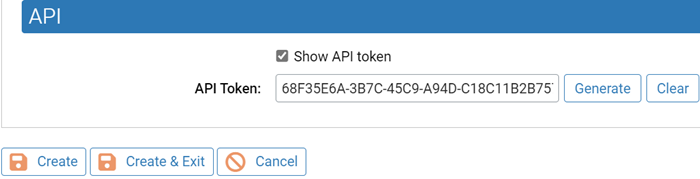
At the bottom of the page, check the Show API token box
and then click the Generate button. A string of
characters displays in the API Token box.
-
Copy the API Token to a location in which you can copy it to your API code.
Also make a record of the login user name with which the code is associated.
-
Click the Save button at the bottom of the page.
Caution:
Do not use the API Token in any way that displays it in clear text. If the API Token is compromised, open the Edit Login Account page for the API user, check the Show API Token box, click Generate to produce a new token, and then click Save. Use the new token for authentication.
To disable API access for a user that currently has permission, follow the steps above but click Clear instead of Generate. If server hardening is required, all API access should be removed.