
Changing Passwords and Other Account Details
When you initially log in to the console as “admin”, you should change the default password (also “admin”) to something unique. All users with login accounts, including admin, should change their passwords periodically.
For Active Directory-based accounts, password changes and other account information must be changed in Active Directory – they cannot be edited through the console.
For a login account created in the console:
- By default, accounts in the Administrators role may change passwords, contact information, and roles for any console-created account. Note that the role for the account admin may not be changed.
- By default, accounts in the PowerUsers role may change passwords and contact information for their own account.
- Account-editing privileges in custom roles vary.
Change a console password and login account details
Use this procedure to change a console password and other login account details.
-
From the console menu bar, click
the Settings (gear) icon and choose Login
Accounts.
The Login Accounts page appears:
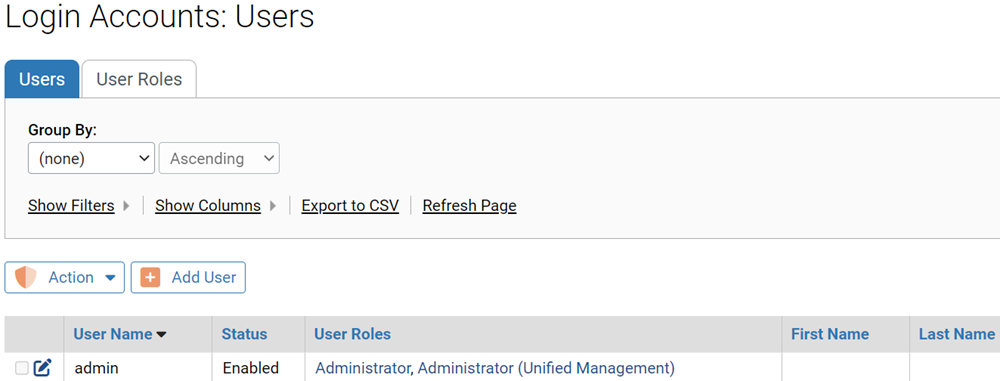
- If the Login Accounts: Users tab is not displayed, click the Users tab.
- On the Login Accounts page, locate the account of the user whose password you are changing, in the Login Accounts: Users table.
-
In the far left column next to
the User name, click the View Details icon.
The Edit Account Details page opens (see Table: Login User Account Details , for a description of the fields).
-
On the Edit Login Account Details page:
- In the New Password field, enter the new password.
- In the Confirm Password field, enter the password again to confirm it.
- If the password is temporary and you want to force the user to reset it upon logging in, select, Make Password Temporary.
- Optionally, change other Login Account Details.
- Click the Save button.
Note:- If the top box on the Login Account Details page for a user is labeled “External Account,” the user accesses the console with an Active Directory account and the details cannot be edited. If an account shows “Account” (without “External”) in the title for the top box, you can edit that account.
- If you change another user’s password, be sure to inform them of the change.
- If you are using SAML to authenticate users, the email address for a user in the Login Account Details must match the identity provider’s email address for that user. Keep this in mind before editing an email address.