
Enable, Disable, and Delete Event Rules
You can enable, disable, or delete specific Event rules on either the Event Rules (table) page or the Edit Event Rule page.
On the Event Rules
page, you can select one or more rules and either enable or disable them using the
Action menu.
Note: You cannot select the
Simulate Only option on this menu. To enable a rule
in Simulate Only mode, use the Edit Event Rule page. For a
sample work flow for Simulate only rules, see Test a Rule before Enabling It.
-
On the console menu, navigate to
the page.
The Event Rules page appears, showing the available rules and their status.
- Select the check-box next to one or more rules in the table.
-
On the Action drop-down menu, select
Enable or Disable and confirm
your choice in the confirmation dialog.
The checked rules are enabled or disabled according to your menu choice.
-
To activate Simulate only mode, which allows you to see
what the effect of an event rule might be without having it take the action
specified in its definition, click the View Details
button next to the rule whose status you want to change.
The Edit Event Rule page opens.
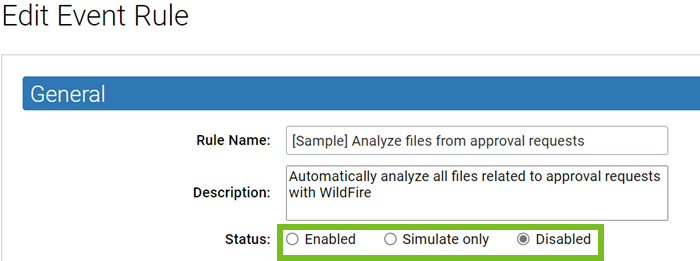
- In the Status field, click the radio button for Enabled, Simulate Only, or Disabled.
-
Make any other changes to the rule properties, then click
Save to stay on the page to monitor events processed
by the rule, or Save & Exit to leave the page.
Note: If an event rule depends on a particular configuration of an analysis tool, such as an analysis environment with a specific operating system, and if that environment becomes unavailable, the rule is disabled automatically after waiting several minutes for the environment to become available again.
You can delete Event rules within the Event Rules page by selecting the checkbox next to one or more rules in the table, and clicking Delete from the Action drop-down menu.