
Manage Bans and Approvals from the Publishers Details Page
For a single publisher, you can use the Publisher Details page to approve or ban the publisher, or to remove an approval or ban. You also can change the policies to which an approval or ban applies.
Note: Publisher approvals and
bans affect Windows agents only.
- On the console menu, click Rules > Software Rules.
- Click the Publishers tab. All publishers of validly signed software discovered on agent-managed computers reporting to your server, plus any publishers whose certificates you manually added, display in the Publishers table.
-
From the table of publishers, locate the publisher whose state you want to
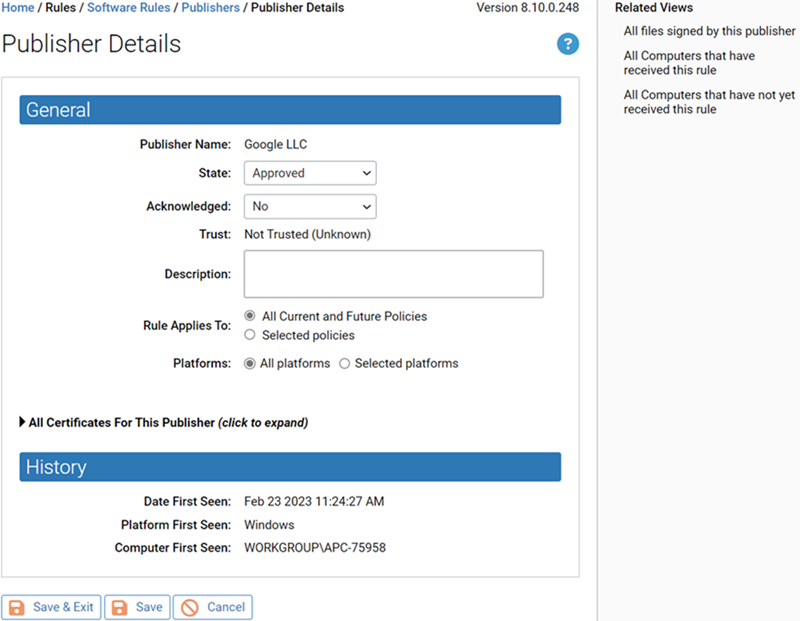
modify and click the View Details button. The Publisher
Details page opens:
-
In the
Statefield, select Approved or Banned. - Optionally change the Acknowledged state to Yes. This indicates that you have reviewed the publisher so that you can concentrate on publishers you have not yet reviewed. You can filter the Publishers table using the Acknowledged field. Acknowledging a publisher has no impact on its approval state.
-
In the
Rule Applies Tofield, click the radio button for All policies or Selected policies. If you specifySelected policies, check the box next to each policy for which you want the publisher approval or ban to be enabled. -
In the
Platformsfield, click the radio button for All platforms or Selected platforms. - Click the Save button.